EN1 МИН · ЧТЕНИЯ
NVS Upload — FAQ
Step-by-step guide for uploading accounts to AutoPilot KYC bot after purchasing from NVS Shop
# NVS Upload — FAQ
You purchased KYC in **NVS Shop** and received a link. Below is how to upload accounts to the bot.
> **Video guide:** KYC for Bybit and MEXC without authorization, without sharing links, with re-verification — [watch on YouTube](https://www.youtube.com/watch?v=WwYna2q5AfU)
---
## Quick Start: Manual (proxies + cookies)
> Upload proxies and cookies separately.
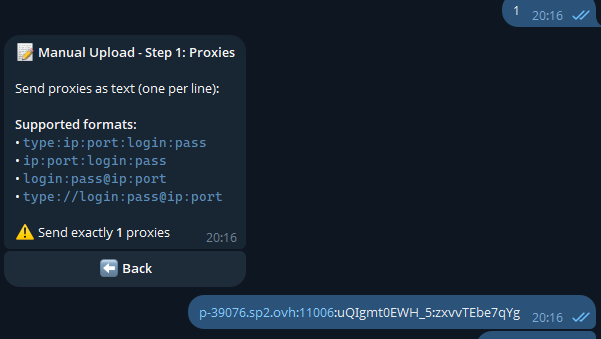
**Step 1.** Open the bot → **Upload Accounts** → **Manual**. Paste your proxy list into the chat (as text, one per line):
**Step 2.** Export cookies from your browser using the [Cookie Editor](https://cookie-editor.com/) extension → **Export → JSON** → save to a `.json` file.
> **Bybit only:** you can also extract just the secure token — [video tutorial on YouTube](https://www.youtube.com/watch?v=AYrxVrHdroY)
**Step 3.** Send `.json` cookie files as documents 📎 → bot validates → press **Confirm**.
> **Done!** Order created, sellers will start KYC verification.
---
## Quick Start: AdsPower
> Using **AdsPower**? Export your profiles as TXT and send to the bot — this is the easiest way.
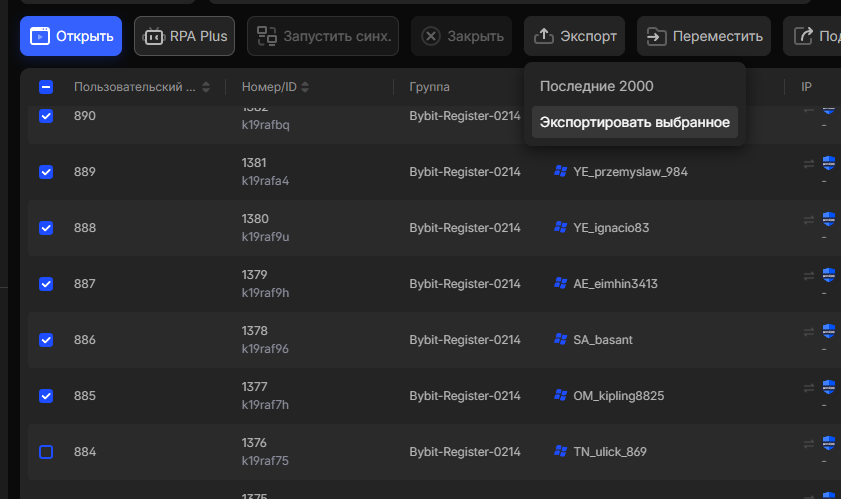
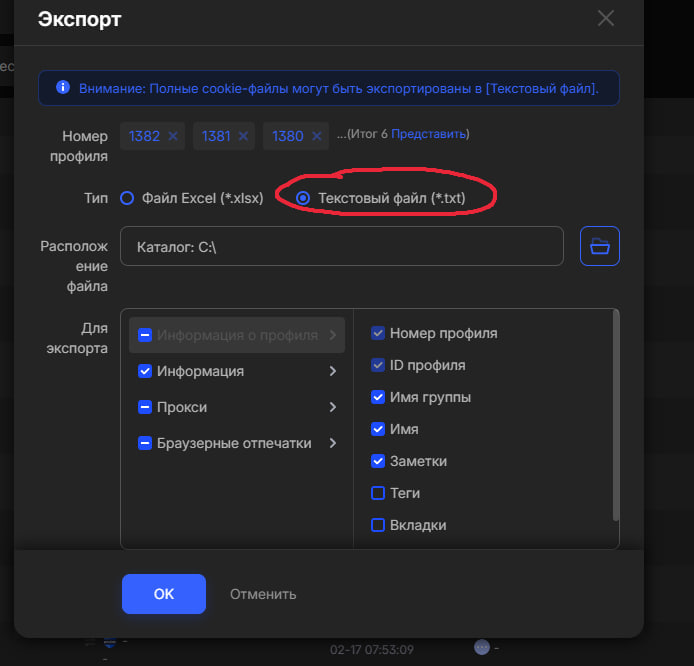
**Step 1.** Select the profiles you need, click **Export** and choose **TXT** format.
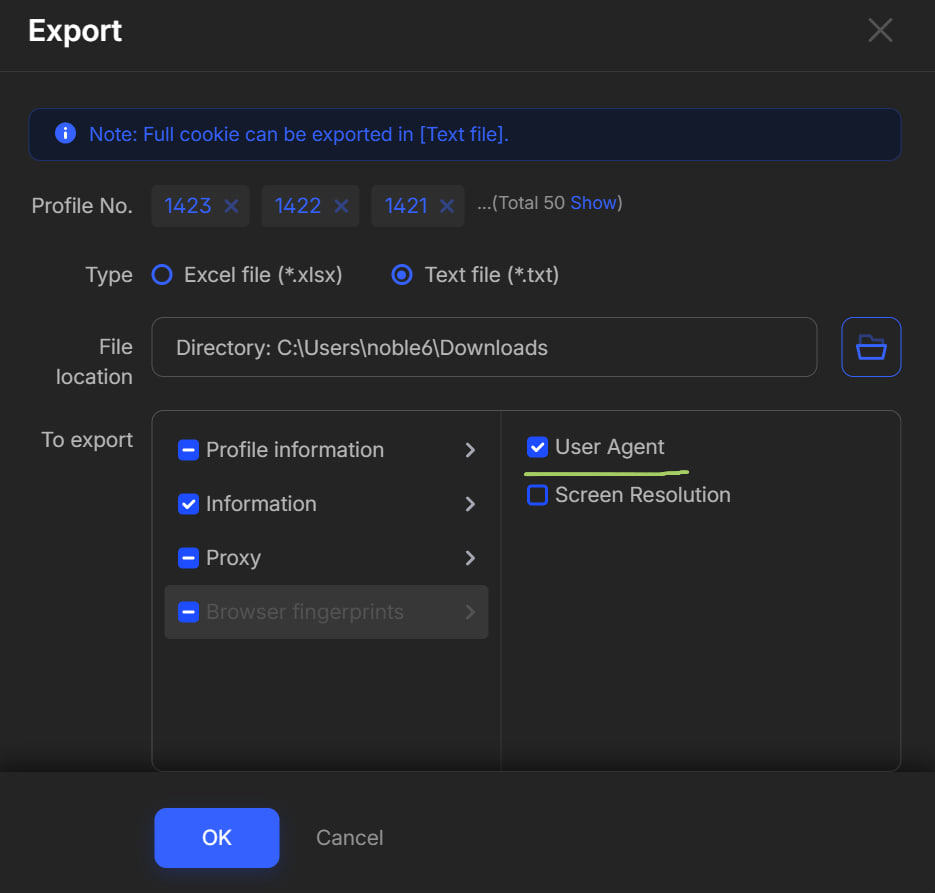
**Step 2.** In the export settings, make sure to enable **User Agent**.
**Step 3.** Open the bot [@AutoPilotKYC_bot](https://t.me/AutoPilotKYC_bot), press **Upload Accounts** → **AdsPower TXT** → send the file as a document 📎.
> **Done!** The bot will validate accounts and offer to create an order.
---
## How to Get Cookies via Cookie Editor
> No Anti-Detect browser? Export cookies directly from your regular browser using the **Cookie Editor** extension.
>
> [Watch video tutorial on YouTube](https://youtu.be/c9ZX-KKaoFQ)
[Cookie Editor](https://chromewebstore.google.com/detail/cookie-editor/hlkenndednhfkekhgcdicdfddnkalmdm) lets you transfer accounts between browsers without logging in again. Useful for:
- **Sharing access** — give access to an account without sharing the password
- **Bypassing blocks** — Gmail, Discord and other services often block logins from new devices. Cookies transfer the session without re-authentication
- **Multiple devices** — quickly switch between browsers
**Step 1.** Install [Cookie Editor for Chrome](https://chromewebstore.google.com/detail/cookie-editor/hlkenndednhfkekhgcdicdfddnkalmdm)
**Step 2.** Open the site (e.g. Bybit) in the browser where you're logged in → click the Cookie Editor icon → **Export → JSON**. Cookies are copied to clipboard.
**Step 3.** Paste the copied cookies into a text file and save as `.json` or `.txt`. Send this file to the bot as a document 📎.
> **Important:**
> - Use the same IP address or proxy so the service doesn't suspect foul play
> - Cookies have an expiration — if the session expires, you'll need to log in again
---
## Which Method to Choose?
| Method | When to Use | Difficulty |
|-|-|-|
| **Manual** | Proxies and cookies separately | Medium |
| **AdsPower TXT** | You use AdsPower | Easy |
```mermaid
flowchart TD
A[You press Upload Accounts] --> B{Do you use AdsPower?}
B -->|Yes| C[Choose AdsPower TXT]
B -->|No| D[Choose Manual]
C --> E[Send one .txt file]
D --> F[Step 1: Send proxies as text]
F --> G[Step 2: Send .json cookie files]
E --> H[Bot validates accounts]
G --> H
H --> I[Press Confirm]
I --> J[✅ Order created!]
```
---
## What Happens After Upload?
1. The bot validates each account (proxy, cookies, exchange access)
2. You see the result: `✅ Passed: 3 | ❌ Failed: 1`
3. Press **Confirm** → order is created
4. Sellers receive the order and start KYC verification
5. Check status via the **My Orders** button
> Typical time: **a few minutes to 1 day**, depending on country and seller availability.
---
## Security: Who Has Access to My Accounts?
**Workers (KYC sellers) do not have access to your accounts.** They only receive a unique one-time link to complete the verification. All they can do is pass KYC (verify identity). They cannot:
- Log into your account
- View your balance or history
- Make trades or withdraw funds
- Change account settings
> Your cookies and data remain only within the bot's system and are never shared with workers.
---
## Detailed Guide
Below is a detailed description of each step for reference.
---
### Activating Your Link
After paying in NVS Shop, you receive a link like:
```
https://t.me/AutoPilotKYC_bot?start=nvs_abc123def456
```
**What to do:**
1. Click the link — Telegram opens the bot
2. Press **Start** (or the link opens automatically)
3. You see a message: **"✅ Welcome to AutoPilot KYC!"**
The bot shows you:
- 🌍 **Country** — the country you selected
- 💱 **Exchange** — Bybit or MEXC
- 📦 **Accounts** — how many accounts you purchased
> ⚠️ **"Invalid or expired link"** — Go back to NVS Shop and get a new one.
---
### Main Menu Buttons
| Button | What It Does |
|-|-|
| 📤 **Upload Accounts** | Start uploading (main action) |
| 📊 **My Orders** | Check order status |
| 🔙 **Back** | Return to previous screen |
---
### AdsPower TXT — Details
**How to export:**
1. Open AdsPower
2. Select the profiles you need
3. Click **Export** → choose **TXT format**
4. Make sure to enable **User Agent**
5. Save the file
**How to send:**
1. In the bot, press **Upload Accounts** → **AdsPower TXT**
2. Send the `.txt` file as a **document** (via 📎)
> ⚠️ Send as a **document**, not as a photo or text message.
**File format example:**
```
acc_id=348
id=k1894g0a
group=Share-1224
name=4623 RWANDA
cookie=[{"name":"token","value":"abc123"}]
proxytype=http
proxy=123.45.67.89:8080:user:pass
countrycode=rw
ua=Mozilla/5.0 ...
******************
acc_id=349
...
```
---
### Manual — Details
#### Step 1: Proxies
Paste proxy text directly into the chat (regular message). Number of lines = number of accounts.
**Supported formats:**
```
123.45.67.89:8080:mylogin:mypassword
mylogin:mypassword@123.45.67.89:8080
http://mylogin:mypassword@123.45.67.89:8080
socks5://mylogin:mypassword@123.45.67.89:8080
```
**Example for 3 accounts:**
```
185.123.45.1:8080:user1:pass1
185.123.45.2:8080:user2:pass2
185.123.45.3:8080:user3:pass3
```
After sending, the bot tests each proxy: working ✅, failed ❌.
#### Step 2: Cookie Files
Send `.json` files as **documents** (via 📎). Number of files = number of working proxies.
> ⚠️ Do NOT paste cookie content as text — send files via 📎.
**File format:**
```json
[
{"name": "token", "value": "abc123", "domain": ".bybit.com"},
{"name": "session", "value": "xyz789", "domain": ".bybit.com"}
]
```
You can send a **single file with all cookies** as a nested array:
```json
[
[{"name": "token", "value": "abc123"}],
[{"name": "token", "value": "def456"}]
]
```
---
### Order Confirmation
After validation, you see a summary:
```
📋 Validation Complete
✅ Passed: 3
❌ Failed: 1
🌍 Country: KE
💱 Exchange: BYBIT
❓ Create order with 3 account(s)?
```
- **✅ Confirm** — create the order
- **❌ Cancel** — go back without creating
---
## Common Errors and How to Fix Them
#### ❌ "This file is not valid JSON"
| Problem | What You Did | Fix |
|-|-|-|
| Wrong file | Sent a screenshot, PDF, or text file | Save cookies to a `.json` or `.txt` file and send it |
| Pasted text | Pasted cookie text or JWT token | Paste cookies into a `.json` / `.txt` file, send as document via 📎 |
| Empty file | File has no content | Re-export cookies using Cookie Editor or your Anti-Detect browser |
| BOM encoding | Invisible characters at start | Re-save as UTF-8 without BOM |
> **If you copied cookies to clipboard** (e.g. via Cookie Editor) — paste them into a text file, save as `.json` or `.txt`, and send to the bot as a document 📎.
---
#### ❌ "Could not read your proxies"
- Each line: `IP:PORT:USERNAME:PASSWORD`
- Don't add extra text
- Just paste the proxy lines
---
#### ❌ "All proxies failed the check"
- Proxies expired — ask your provider for new ones
- Wrong credentials — double-check login/password
- Server is down — try again later
---
#### ❌ "All accounts failed validation"
The bot shows specific reasons:
- `No KYC provider` — account not set up for KYC
- `Session expired` — cookies are old
- `Proxy blocked` — exchange blocks this IP
- `Country mismatch` — proxy country doesn't match order
**Fix:** fresh cookies + working proxies from your provider.
---
#### ❌ "Wrong number of proxies"
Number of lines must match the number of purchased accounts.
---
#### ❌ "Too many cookie files"
Each proxy needs exactly one cookie file.
---
#### ❌ "Invalid or expired link"
Go back to NVS Shop and request a new link.
---
## Frequently Asked Questions
#### What files do I need?
| Method | What You Need |
|-|-|
| AdsPower TXT | One `.txt` file from AdsPower |
| Manual | Proxy text + `.json` cookie files |
#### Where do I get proxies?
From your proxy provider. They give you text like `IP:PORT:USER:PASS`.
#### Where do I get cookie files?
Export them using the [Cookie Editor](https://cookie-editor.com/) extension (Chrome, Firefox, Edge, Safari), or click **Export** in your Anti-Detect browser.
#### Can I send cookies as text?
**No.** Paste cookies into a `.json` or `.txt` file and send as a document via 📎.
#### What if some accounts fail?
You can still create an order with the ones that passed. Failed accounts are excluded.
#### Can I upload more accounts later?
Yes! Press **Upload Accounts** again.
#### What does "No KYC provider" mean?
Account isn't set up for KYC, or cookies are from a different account. Contact your provider.
#### How long until KYC is done?
**A few minutes to 1 day**, depending on country and seller availability.
#### Something went wrong — who do I contact?
Contact support through NVS Shop or the bot admin. Include screenshots of errors.
---
> **Summary:** Activate link → Upload Accounts → Choose method → Send files → Confirm → Done!